Teams & Organizations
Truesight supports collaborative workflows through Teams and Organizations. These features let you share resources, manage permissions, and coordinate evaluation efforts across your team.
Organizations
An Organization is the top-level container for your team's Truesight account. It's tied to your subscription plan and includes:
- Member management: Add and remove team members
- Billing and credits: Organization admins can manage your subscription, purchase credits, and monitor usage
- Organization API keys: Set provider keys that apply to all members
- Shared resources: Datasets, evaluations, and results visible to the organization
Multi-member organizations are available on the Pro and Enterprise subscription tiers.
Organization API keys
Organization admins can configure shared API keys for all four supported model providers from the Organization page:
- OpenAI
- Anthropic
- Google Gemini
- Perplexity
When organization API keys are configured, they take precedence over both individual members' personal keys and Managed API keys. This lets you centralize billing and control which providers your team uses. Members can still set personal keys for providers not configured at the organization level. When organization or user keys are active, Truesight credits are not consumed.
Usage and credits
Truesight uses a credit balance system for evaluations run with Managed API keys. Your organization's balance is visible on the Usage & Balance page.
- Included credits: Your monthly subscription payment is credited directly to your account each billing cycle as managed AI credits.
- Purchasing credits: Organization admins can buy additional credits directly from the Usage & Balance page. Choose a preset amount ($25, $50, $100, or $250) or enter a custom amount between $5 and $1,000. Purchases are processed securely through Stripe.
- Auto-recharge: Organization admins can enable auto-recharge on Usage & Balance to reduce interruptions. You can set a low-balance threshold, recharge amount, and optional monthly limit. When balance drops below the threshold, Truesight attempts an automatic credit purchase using your saved billing method.
- BYOK (Bring Your Own Key): Available on the Enterprise plan. When you configure your own API keys (in Settings at the user level or at the organization level), those keys take priority over Managed API keys. Credits are only consumed when no custom keys are configured. Organization keys take precedence over user keys.
Evaluation result retention
Evaluation results are retained according to your subscription plan:
- Hobby: 30 days
- Pro: 90 days
- Enterprise: unlimited
To monitor usage, visit the Usage & Balance page in the sidebar. It shows your current balance, a breakdown of credit allocations, and usage history by provider. Organization admins can also purchase credits and configure auto-recharge from this page.
Teams
Within an organization, Teams let you organize members into groups with shared access to specific resources.
Creating teams
Organization admins can create teams from the Teams page. Each team has:
- A name and optional description
- Members: Users added to the team
- Shared resources: Datasets and evaluations accessible to team members
Resource sharing
When you share a resource with a team, all team members gain access at the permission level you specify:
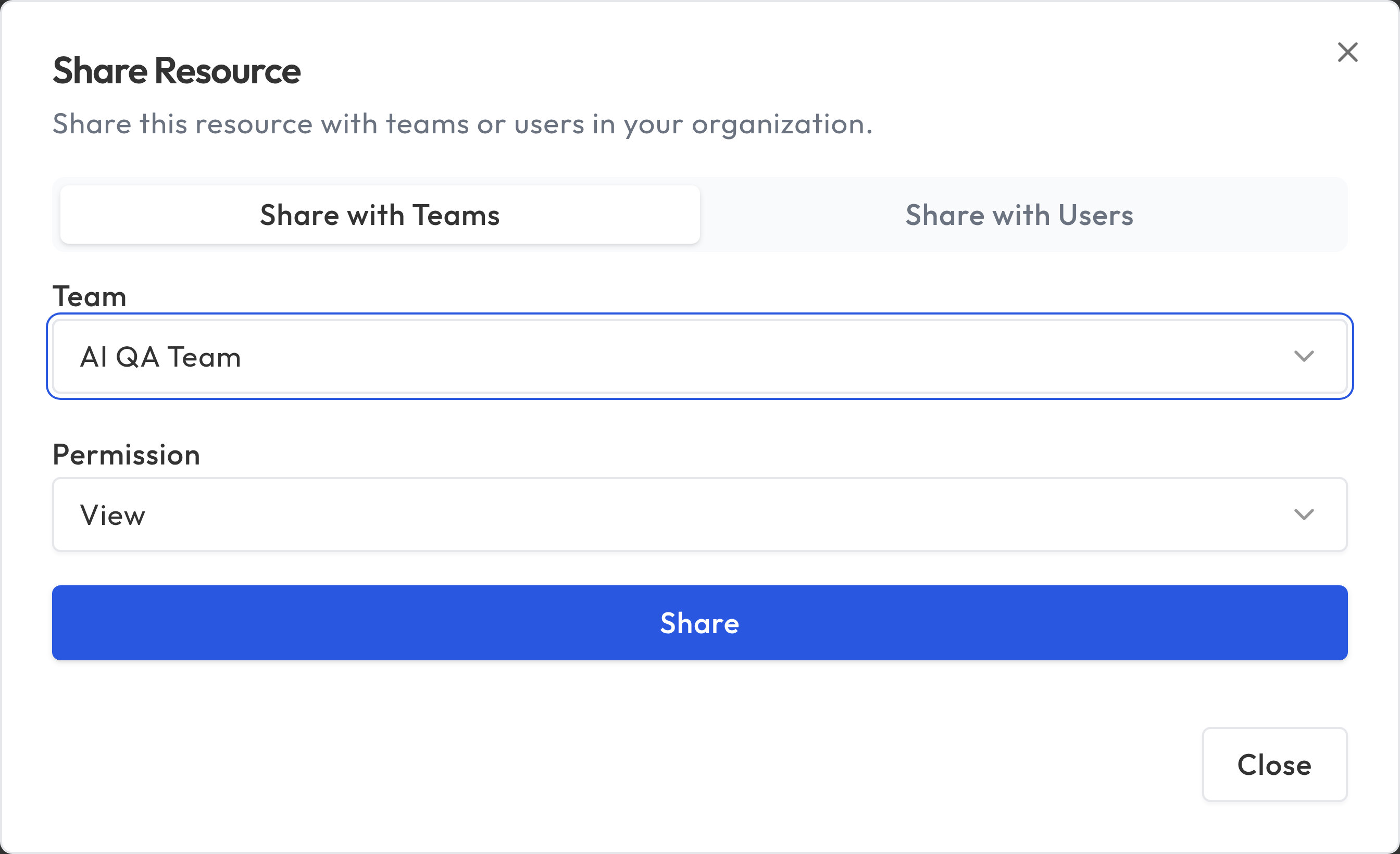
| Permission | What it allows |
|---|---|
| View | See the resource and its results |
| Edit | Modify the resource (update datasets, edit evaluations) |
| Admin | Full control including sharing and deletion |
Managing membership
Team admins can:
- Invite new members via email
- Remove existing members
- Change member roles within the team
Sharing with individual users
On Pro and Enterprise plans, resource owners and admins can share datasets, evaluations, and live evaluations directly with individual users in the same organization. This is useful when you need to grant access to a specific person without creating or modifying a team.
How it works
- Open the resource you want to share and click Share
- Switch to the Share with Users tab
- Enter the recipient's email address (they must be a member of your organization)
- Choose a permission level (View, Edit, or Admin)
- Click Send Invitation
The recipient will see the invitation on their Invitations page and can accept or decline it. Until they accept, the share remains in a pending state and does not grant access.
Dependent shares
When you share an evaluation with a user, Truesight automatically creates a View share on the evaluation's underlying dataset. This ensures the recipient can see the data the evaluation references. These dependent shares are managed automatically and are removed if the evaluation share is revoked.
Permission levels
Individual user shares use the same permission levels as team shares:
| Permission | What it allows |
|---|---|
| View | See the resource and its results |
| Edit | Modify the resource (update datasets, edit evaluations) |
| Admin | Full control including sharing and deletion |
When a user has access through multiple paths (for example, both a team share and an individual share), the highest permission level applies.
Ownership transfers
On Pro and Enterprise plans, you can transfer ownership of a dataset, evaluation, or live evaluation to another user in your organization. This is helpful when a team member changes roles or when someone else should take over management of a resource.
Transferring ownership
- Open the resource and use the Transfer Ownership option
- Select the new owner from your organization's members
- The recipient will see the transfer request on their Invitations page
- Once they accept, they become the new owner and you retain Admin access
If the recipient declines, ownership stays with you and nothing changes.
Invitations
Truesight uses a unified Invitations page (accessible from the user menu) for all pending requests. You may see:
- Organization invitations: Invitations to join an organization
- Team invitations: Invitations to join a team within your organization
- Resource invitations: Individual shares for datasets, evaluations, or live evaluations awaiting your acceptance (Pro and Enterprise)
- Ownership transfers: Requests from other users to transfer resource ownership to you (Pro and Enterprise)
You can accept or decline each invitation individually.
Organization admins can also send invitations to people who don't yet have Truesight accounts. They'll receive an email invitation and create their account through the signup flow.
Best practices for team workflows
- Create teams by function: Separate teams for different evaluation domains helps keep resources organized.
- Use View permissions liberally: Let team members learn from each other's evaluations.
- Reserve Admin permissions: Only grant Admin access to team leads who manage the evaluation lifecycle.
- Establish naming conventions: Consistent naming for datasets and evaluations makes shared resources easier to find.
- Coordinate error analysis: Have multiple team members do Open Coding on the same dataset to capture diverse perspectives.