Getting Started
This guide walks you through setting up your Truesight account and running your first evaluation. By the end, you'll have a working evaluation that you can deploy as an API endpoint.
Step 1: Create your account
Visit the Truesight homepage and sign up. Truesight offers multiple secure authentication options: email and password, passwordless magic link, Google sign-in, or your company's SSO.
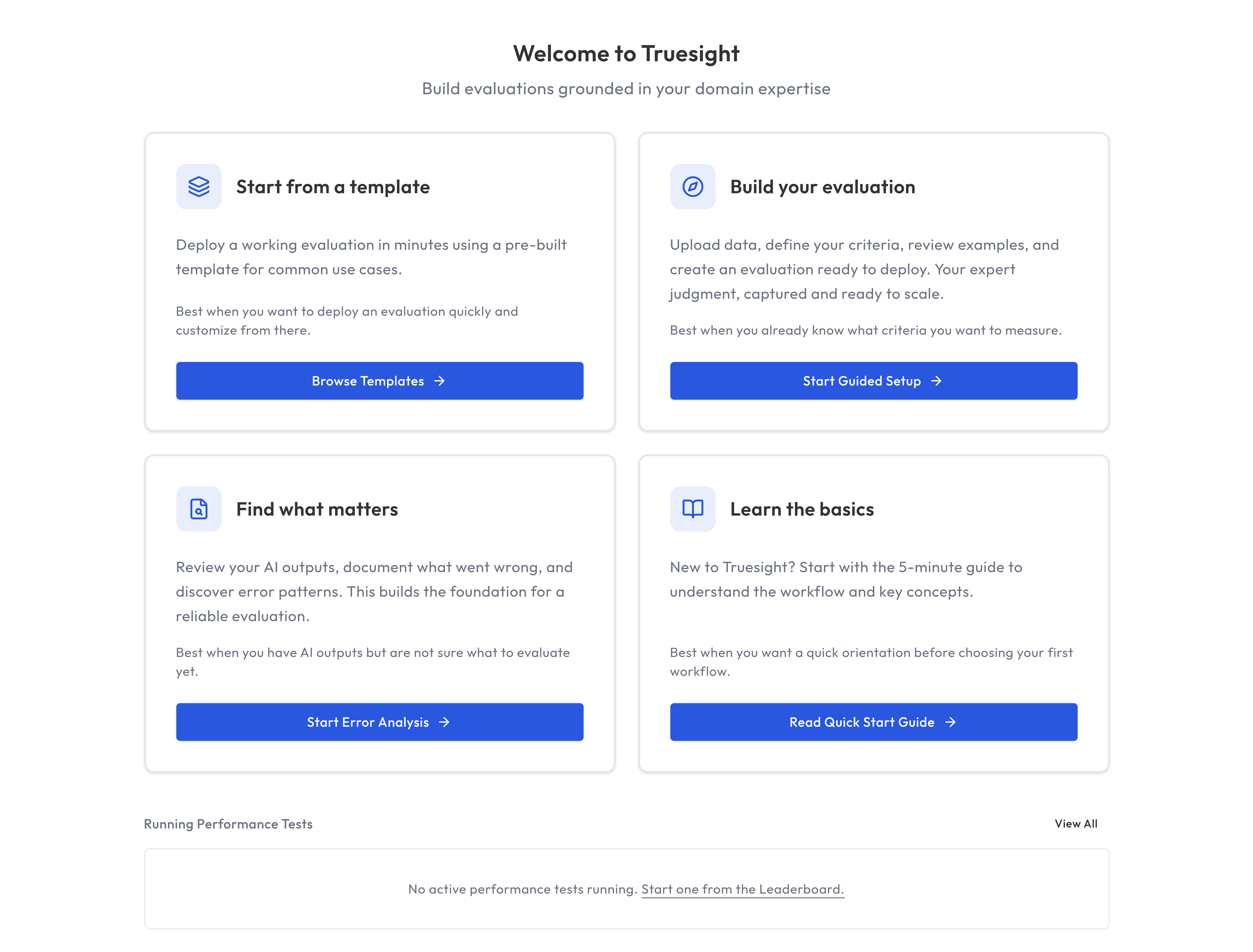
Once signed in, you'll land on the Dashboard, which offers four paths to get started:
- Start from a template: The fastest path. Choose a pre-built evaluation template, and Truesight automatically creates a labeled dataset and deploys a live evaluation endpoint in minutes. Great for new users who want to see the platform in action immediately.
- Build your evaluation: Start the Guided Setup flow directly from the dashboard.
- Find what matters: Jump into Error Analysis to discover failure patterns before you write criteria.
- Learn the basics: Open the docs if you want the product tour first.
Optional: Bring your own API keys (Enterprise only). Truesight works out of the box with Managed API keys and your credit balance. Enterprise users can configure their own provider keys in Settings. When configured, custom keys take priority and credits are not consumed.
Step 2: Upload your first dataset
Navigate to Datasets in the sidebar and click Upload Dataset.
Truesight accepts three file formats:
- CSV: Comma-separated values with a header row
- JSON: An array of objects, each representing one example
- JSONL: One JSON object per line
Your dataset should contain at minimum:
- An input column (what was sent to the AI, e.g., a user question)
- An output column (what the AI responded with)
You can also include trace metadata, expert reviews, and any other columns relevant to your evaluation.
All columns are available by default. You can toggle which columns are visible while reviewing data, and optionally assign a content column later from the dataset detail page.
Tips for your first dataset
- Start with 20 to 50 examples. You don't need thousands. Truesight is designed to work well with small, curated datasets.
- Include a mix of good and bad examples. This helps you build evaluation criteria that distinguish between quality levels.
- If you don't have data yet, download one of the example datasets from the upload dialog.
Step 3: Discover patterns with Error Analysis
Before building an evaluation, it helps to understand what kinds of errors exist in your data. Navigate to Error Analysis in the sidebar. See the Error Analysis guide for a full walkthrough.
Open Coding
In the Open Coding phase, you review examples from your dataset one at a time and take note of patterns you notice. For example:
- "Hallucinated a fact that wasn't in the source material"
- "Answered the wrong question"
- "Tone was too formal for the audience"
When you see multiple issues in one example, focus on noting the first problem that happened, since later issues often stem from that initial mistake.
Don't worry about being systematic yet. Just capture what you see. Review as many examples as you like, and you will start seeing patterns in your AI's error modes before long.
Axial Coding
In the Axial Coding phase, you group your observations into categories. Truesight helps you cluster related notes and name the categories. These categories become the basis for your evaluation criteria.
For example, notes like "made up a statistic" and "cited a nonexistent source" might group into a category called Factual Accuracy.
Step 4: Build your evaluation
Navigate to Guided Setup in the sidebar. The wizard walks you through creating an evaluation in structured steps. See the Evaluations guide for a detailed explanation of each step.
- Data: Upload or select the dataset you want to evaluate
- Judgments: Configure the judgment columns for your expert annotations or labels
- Review: Review examples and provide expert labels
- Finish: Create the evaluation configuration
- Test: Try your evaluation on sample data to verify it works
The Guided Setup provides sensible defaults at each step, so you can move through quickly and refine later.
Step 5: Test and deploy
The final step of the Guided Setup deploys your evaluation as a live endpoint and lets you test it on sample data. Review the results to see how well your criteria capture the patterns you identified. You can also test active evaluations at any time from the Test Evaluation page in the sidebar.
Once deployed, you get:
- A public ID for the evaluation endpoint URL
- An API key for authentication
- API examples (cURL and Python) showing how to call the endpoint with your input columns
You can now call this endpoint from your application to evaluate AI outputs in real time. See the API Integration guide for details.
To iterate and improve, you can:
- Adjust criteria if the evaluation is too strict or too lenient
- Add examples to your dataset for edge cases
Iterate until the evaluation matches your expert judgment on the examples you've reviewed.
What's next?
- Learn more about Datasets and how to structure your data
- Deep dive into Error Analysis for systematic pattern discovery
- Explore Evaluations to understand advanced evaluation features
- Set up Teams to collaborate with your colleagues