Datasets
Datasets are the foundation of everything in Truesight. They contain the AI inputs and outputs you want to evaluate, and they're used across the entire platform.
What is a dataset?
A dataset is a collection of examples, where each example represents one interaction with your AI system. At minimum, each example has an input (what was sent to the AI) and an output (what the AI produced).
You can also include additional columns like:
- Trace metadata: Tool calls, chain-of-thought reasoning, retrieval context, or other intermediate steps from your AI pipeline
- Expert reviews: Human judgments, corrections, or quality annotations for each example
- Other metadata: Timestamps, user IDs, model versions, session IDs, or any other information useful for filtering and analysis
Supported formats
Truesight accepts three file formats:
CSV
Standard comma-separated values with a header row. Best for tabular data exported from spreadsheets or databases.
| user_query | bot_response |
|---|---|
| How do I return a jacket? | You can return any item within 30 days. Visit your Orders page and select Return Item. |
| Do you ship to Canada? | Yes, we ship to Canada. Standard delivery takes 5-7 business days. |
| My order arrived damaged | Please send a photo of the damage and we'll ship a replacement right away. |
JSON
An array of objects where each object is one example. Best for structured data with nested fields.
[
  {
    "user_query": "How do I return a jacket?",
    "bot_response": "You can return any item within 30 days. Visit your Orders page and select Return Item."
  },
  {
    "user_query": "Do you ship to Canada?",
    "bot_response": "Yes, we ship to Canada. Standard delivery takes 5-7 business days."
  }
]
JSONL
One JSON object per line (newline-delimited JSON). Best for large datasets or streaming data exports. Each line is a complete JSON object:
{
  "user_query": "How do I return a jacket?",
  "bot_response": "You can return any item within 30 days."
}
OpenAI Chat Completions format
Truesight supports the OpenAI Chat Completions conversation format, which has become the standard way most AI tools and platforms represent chat-style interactions. If you use a logging, tracing, or observability tool that exports conversations in this format, you can upload them directly to Truesight as a JSON or JSONL file.
{
  "messages": [
    {
      "role": "system",
      "content": "You are a helpful retail support agent."
    },
    {
      "role": "user",
      "content": "How do I return a jacket?"
    },
    {
      "role": "assistant",
      "content": "You can return any item within 30 days. Visit your Orders page and select Return Item."
    }
  ]
}
When a column contains data in this format, Truesight automatically detects it and renders the conversation with role-based styling.
Selecting content to evaluate
All columns are visible by default when you review data. You can toggle columns on and off directly from the annotation or review interface using the column visibility controls.
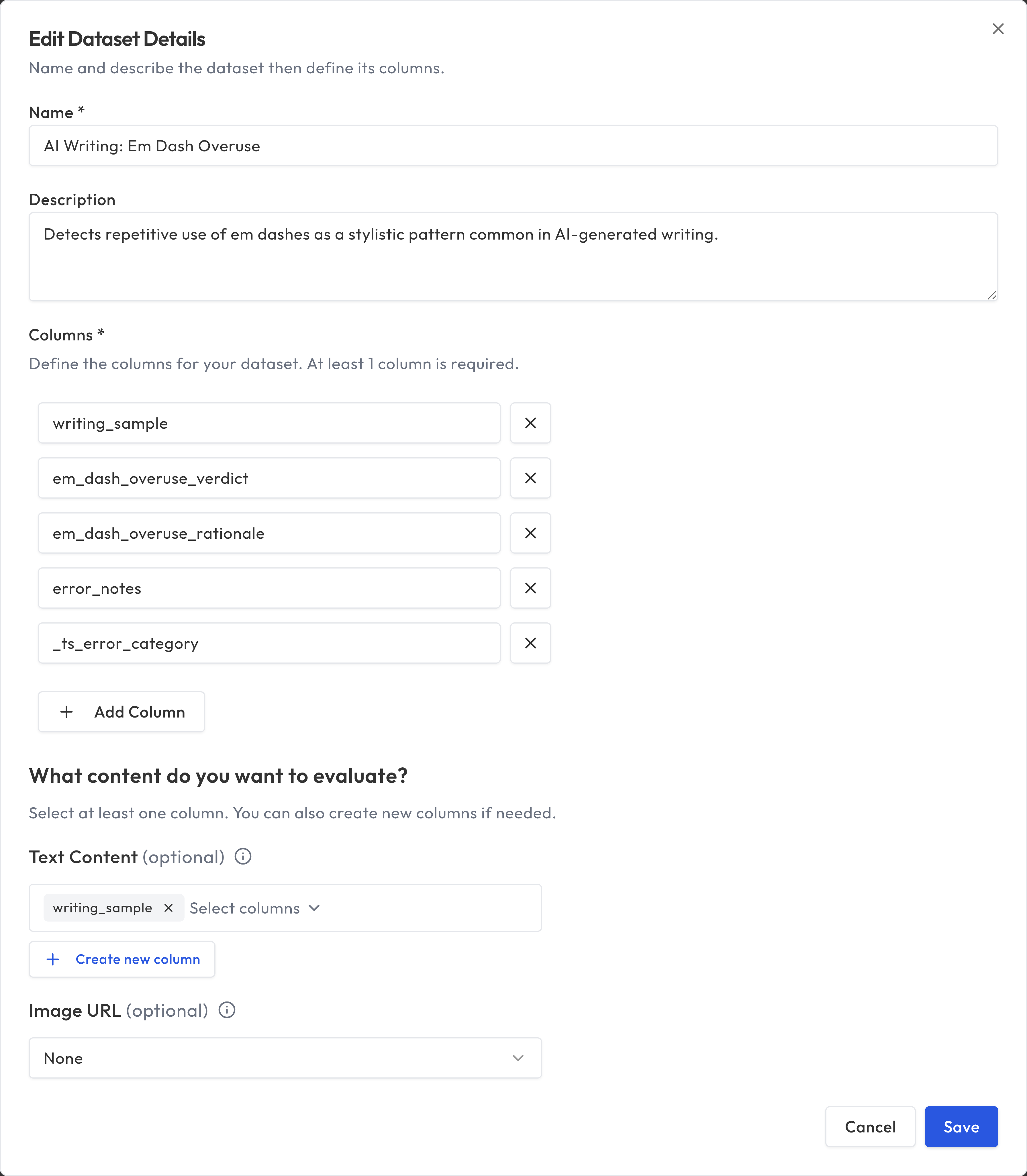
Optionally, you can designate specific columns from the dataset detail page:
- Text Content: Select one or more columns that contain the text to evaluate. If you select multiple columns, they'll be combined together with labels so the evaluator can see all of them. For example, you might select both a "user_query" column and a "bot_response" column.
- Image URL: Select a column that contains image URLs, for evaluations that include image content.
Image URL contract: values in the designated image column must be remote URLs that start with http:// or https://. Local file paths, file://, data:, and other schemes are rejected at import and when editing rows so the evaluation pipeline never treats a cell as a filesystem path.
You must assign at least one text content column or one image URL column (or both). Image-only evaluations are supported -- if your dataset contains only images and no text content, assign just the image URL column.
Managing datasets
Viewing and exploring
From the Datasets page, you can see all your datasets with their row counts, column information, and creation dates. Use the search bar at the top of the list to filter datasets by name. Select a dataset to view its contents, edit its settings, or use it in other features.
Editing
You can update which columns are used for evaluation at any time from the dataset detail page via the more actions menu. Changing these selections will affect future evaluations but won't retroactively change existing results.
Promoting from Review Queue
When you review evaluation results and flag corrections, those corrections can be promoted back into your dataset. This creates a feedback loop where your dataset improves over time based on evaluation insights. See Results & Review for details on the Review Queue workflow.
Programmatic access
You can create, upload, read, and delete datasets through both REST and MCP:
- Use REST when you're building an application, backend job, ETL, or export flow and want explicit HTTP pagination.
- Use MCP when you're working inside an AI agent workflow and want higher-level tools such as
upload_dataset,create_dataset, andget_dataset_rows.
For REST access, use a Platform API Key. Reading metadata or rows requires datasets:read; uploading or deleting requires datasets:write.
Reading dataset metadata and rows via REST
Use GET /api/datasets/{dataset_id} when you want dataset metadata plus a preview of the first 10 rows:
curl -X GET "https://api.truesight.goodeyelabs.com/api/datasets/ds_abc123" \
  -H "Authorization: Bearer ts_pat_your_key_here"
Use GET /api/datasets/{dataset_id}/rows when you need the full dataset contents page by page:
curl -X GET "https://api.truesight.goodeyelabs.com/api/datasets/ds_abc123/rows?page=1&page_size=100" \
  -H "Authorization: Bearer ts_pat_your_key_here"
The paginated rows response includes:
| Field | Description |
|---|---|
rows | The page of dataset rows |
row_ids | Stable row IDs aligned to rows by index |
total | Total number of matching rows |
page | Current page number |
page_size | Number of rows returned per page |
total_pages | Total available pages |
If you only need schema, judgment configs, and a quick preview, GET /api/datasets/{dataset_id} is usually enough. If you need to read every row, use GET /api/datasets/{dataset_id}/rows in a loop. For agent-driven retrieval, MCP is usually more convenient than building the pagination loop yourself.
Uploading a dataset via REST
Use POST /api/datasets/upload with a multipart/form-data request. Supported file extensions are .csv, .json, and .jsonl. The file size limit is 50 MB and the row limit is 250,000.
curl -X POST "https://api.truesight.goodeyelabs.com/api/datasets/upload" \
  -H "Authorization: Bearer ts_pat_your_key_here" \
  -F "name=My Dataset" \
  -F "description=Customer support conversations" \
  -F "file=@conversations.jsonl"
import requests

with open("conversations.jsonl", "rb") as f:
    response = requests.post(
        "https://api.truesight.goodeyelabs.com/api/datasets/upload",
        headers={"Authorization": "Bearer ts_pat_your_key_here"},
        data={"name": "My Dataset", "description": "Customer support conversations"},
        files={"file": ("conversations.jsonl", f, "application/octet-stream")},
    )

dataset = response.json()
print(dataset["public_id"])  # e.g. "ds_abc123"
After upload, Truesight automatically assigns default text input columns and detects an image URL column when applicable. You can keep those defaults or update them later from the dataset detail page or via PATCH /api/datasets/{dataset_id}/input-field using a platform key with the datasets:write scope.
Deleting a dataset via REST
Use DELETE /api/datasets/{dataset_id} with the dataset's public_id. Only the dataset owner can delete it; admin-level share holders cannot.
If the dataset has dependent evaluations, the request will fail unless you pass ?force=true, which deletes those evaluations as well. However, if any of those evaluations have active live evaluation endpoints, the deletion will fail regardless of force. Deactivate any live evaluations first before deleting the dataset.
# Delete a dataset with no dependents
curl -X DELETE "https://api.truesight.goodeyelabs.com/api/datasets/ds_abc123" \
  -H "Authorization: Bearer ts_pat_your_key_here"

# Delete a dataset and its dependent evaluations
curl -X DELETE "https://api.truesight.goodeyelabs.com/api/datasets/ds_abc123?force=true" \
  -H "Authorization: Bearer ts_pat_your_key_here"
A successful deletion returns HTTP 204 No Content.
Best practices
- Start small: 20 to 50 examples is enough to build and test initial evaluations. You can always add more later.
- Include variety: Make sure your dataset covers different types of inputs, edge cases, and quality levels.
- Curate intentionally: A small, well-curated dataset is more valuable than a large, noisy one.
- Version your data: Upload new datasets rather than overwriting existing ones, so you can track how your evaluations perform over time.
- Use meaningful column names: Clear column names make it easier to assign roles and understand results.